# Windows Server 2025 / Windows 11 24H2 GPP Diagnostics Practical Tutorial: Quickly Troubleshoot Group Policy Preferences Using Event IDs 4098 and 4117
### Introduction
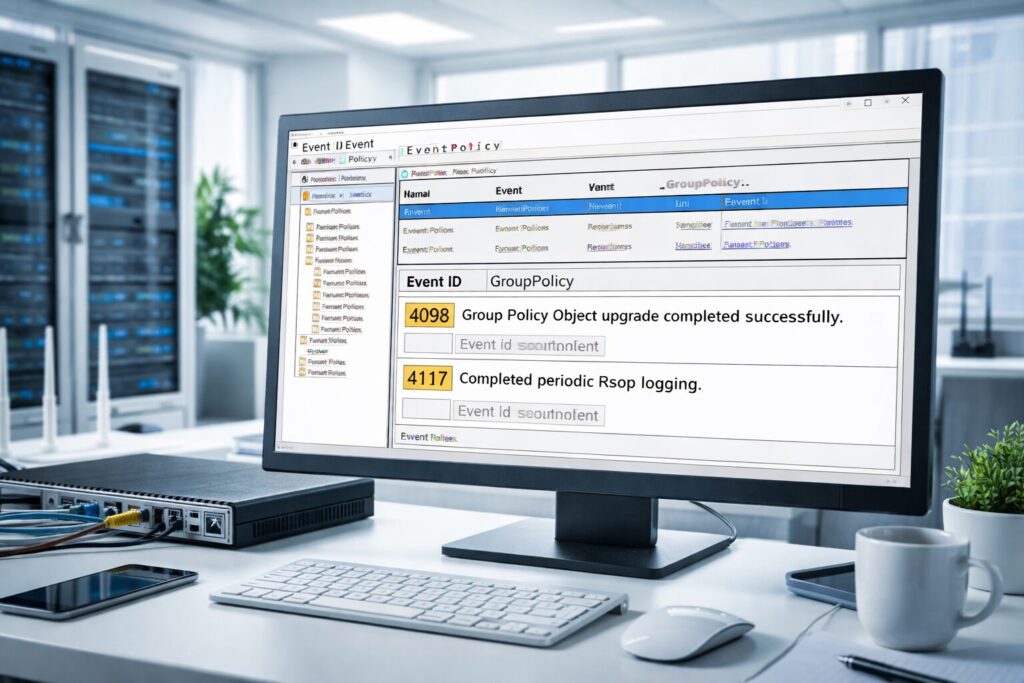
If you have experience managing Active Directory environments, you’ve probably encountered the frustrating issue where a client runs `gpupdate /force` but GPP (Group Policy Preferences) fails to apply. Checking the Event Viewer may show a vague **Event ID 4098** error with little hint on where to begin troubleshooting. Fortunately, in **Windows Server 2025** and **Windows 11 (24H2/25H2)**, Microsoft has enhanced **GPP diagnostics** significantly—making **4098 more descriptive and 4117 more comprehensive** so troubleshooting becomes straightforward.
This article offers a step-by-step tutorial based on first-hand experience troubleshooting “GPP not applying / intermittent failures” in enterprise domains, supplemented by Microsoft’s official technical community notes.
—
### 1. The New Enhancements in GPP Diagnostics: Why Are Events 4098 and 4117 More Insightful?
Older systems only indicated GPP failures vaguely, leaving admins guessing where exactly the failure occurred—what step or file was problematic, or what permission was missing. The new GPP diagnostics fill these gaps on two critical events:
– **Event ID 4098 (CSE error):**
– Now points to specific file paths (e.g., a particular SYSVOL GPP XML file)
– Details failure reasons such as Access Denied, XML format issues, or network/path unreachable
– Contextualizes if failure happened during read or apply phases
– **Event ID 4117 (CSE success/failure info):**
– Reports success or failure of specific GPP settings or CSE categories
– Pinpoints failure at finer-grained action steps like registry key creation or file writing
– Helps trace the entire processing chain from GPO discovery to preference execution
This clarity turns troubleshooting from “blind guessing” to “following a clear map.” Next, let’s move to hands-on techniques.
—
### 2. Leveraging “GPP Diagnostics”: Reading 4098/4117 in GroupPolicy-Operations Log
The first action in troubleshooting is to fix the evidence scope: identify which client, time, GPO, and preference category experienced the failure. The most reliable source is:
> Event Viewer → Applications and Services Logs → Microsoft → Windows → GroupPolicy-Operations
Focus on **4098** and **4117** events. Recommended reading order:
1. Check **4117** first for a process overview — which CSE started, ended, or failed.
2. Use timestamps to align **4098** to get root cause details.
3. Treat reported file paths as golden clues and verify:
– Client access to SYSVOL share and network reliability
– Presence, integrity, and repetition of GPP XML files on SYSVOL
– NTFS and share permissions (Domain Computers, Authenticated Users)
Mapping common error types to actions:
| Error Message | Probable Root Cause | What To Check First |
|—————————————|———————————-|———————————————|
| Access is denied | Broken SYSVOL NTFS permissions | Review permissions and ACL inheritance |
| File not found | Missing GPP files, incomplete DFS replication | Verify SYSVOL replication and file presence |
| XML parsing error | Corrupted XML file | Validate XML structure or recreate settings |
| Path or network name not found | DNS/site/DC connectivity or DFS/SMB issues | Network diagnostics, Netlogon status |
Comparing files across multiple DCs helps diagnose replication issues.
—
### 3. Advanced “GPP Diagnostics”: Enable Verbose Logging (GPSvcDebugLevel), Procmon, and Netlogon Tracing
If 4098/4117 provide clues but don’t explain “why,” go deeper:
– **Enable GPSvcDebugLevel Verbose logs:**
– Registry: `HKLMSoftwareMicrosoftWindows NTCurrentVersionDiagnostics`
– DWORD `GPSvcDebugLevel` = `0x10002`
– Run `gpupdate /force` afterwards
– Captures detailed processing steps of Group Policy Client
– **Use Procmon:**
– Filter for `gpsvc`, `svchost.exe (gpsvc)`, and paths containing `GroupPolicy` or `Preferences`
– Look for ACCESS DENIED, NAME NOT FOUND, PATH NOT FOUND etc.
– Helps pinpoint file, registry, or network access failures
– **Netlogon tracing (if needed):**
– Diagnose domain controller connectivity, authentication failures, and security channel health
These tools together turn logs into actionable evidence.
—
### 4. Practical Checklist for GPP Troubleshooting: SYSVOL, Permissions, XML Integrity, and Validation
Follow this order to systematically resolve GPP issues:
1. Determine User or Machine preferences — look under respective SYSVOL paths.
2. Verify SYSVOL availability and consistency across DCs.
3. Check NTFS permissions thoroughly; compare to working GPOs.
4. Inspect XML files for corruption or invalid formatting; recreate preference entries if needed.
5. Confirm fixes by checking event logs (4117 success), verifying actual applied settings, and testing on multiple clients.
—
### FAQ Highlights
– 4098 indicates CSE execution failure but not always GPP config problems.
– Missing GroupPolicy-Operations logs may be due to log settings.
– Verbose logging should be temporary due to performance impact.
– 4117 success with no effect might stem from filtering or policy conflicts.
– Access denied errors can occur locally due to client-side security software or registry permissions.
– Microsoft officially documents these diagnostic improvements.
—
**Conclusion:** Enhanced GPP diagnostics in Windows Server 2025 and Windows 11 24H2 simplify troubleshooting by making logs more actionable. Combining event logs with verbose debug and procmon captures turns guesswork into evidence-based fixes.
—
If you’re upgrading domain controllers, deploying Windows 11 at scale, or struggling with GPP intermittent failures, visit **De-line Technology** for expert AD architecture, policy governance, endpoint security, and Microsoft solutions: https://www.de-line.net
Official reference: Microsoft Tech Community blog on GPP diagnostics improvements https://techcommunity.microsoft.com/blog/askds/from-guesswork-to-clarity-gpp-diagnostics-improve-in-windows-server-2025-and-win/4499474
************
The above content is provided by our AI automation poster