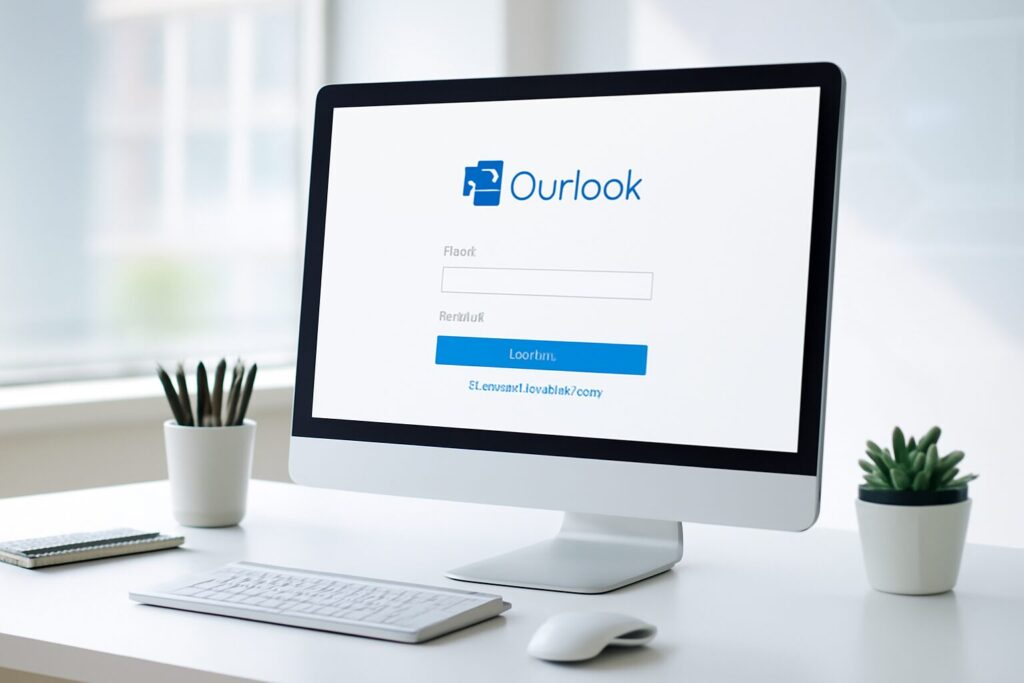
In today’s digital workplace, Microsoft 365 (M365) is a vital collaboration tool, especially the CenturyLink-hosted Microsoft 365 service widely used in mainland China. However, many users face login failures and authorization issues when using the new Outlook for Windows, impacting work efficiency significantly. This article focuses on how to resolve the “CenturyLink M365 unable to login to new Outlook” issue, explaining root causes, detailed steps, and optimization strategies to help you restore Outlook access smoothly and enjoy a seamless office experience.
### Key Causes of Login Failures with New Outlook and CenturyLink M365
The new Outlook is a redesigned Windows application featuring a modern UI and cloud integrations but poses compatibility and network challenges. We summarize the core reasons:
1. **Plugin Compatibility Issues**: Some third-party COM add-ins have not adapted to the new Outlook architecture, causing authorization failures during login.
2. **Higher .NET Framework and Network Requirements**: The new Outlook depends on a newer .NET Framework and stable network conditions. CenturyLink M365’s unique network structure can cause connection delays and blocked authentication.
3. **Incomplete Support for Group and Shared Mailboxes**: The new Outlook still refines its handling of group/shared mailboxes, leading to permission disputes and access errors.
4. **Authorization and Activation Workflow Mismatches**: Multi-tenant environments and organizational account activations sometimes cause permission verification errors, making login states unstable.
### Step-by-Step Guide to Revert to Classic Outlook to Solve Login Issues
If you encounter login problems, temporarily reverting to Classic Outlook is the most effective solution. The classic version is more mature and compatible. Steps include:
1. **Uninstall New Outlook or Office 365 Apps**
– Use Control Panel → Programs to uninstall Microsoft 365 or Office.
– Use Microsoft Support and Recovery Assistant (SaRA) for thorough removal to prevent conflicts.
2. **Install Classic Office/Outlook Client**
– Login to Microsoft 365 Admin Center.
– Download and install Classic Office 2019 or 2021.
3. **Disable Automatic Updates**
– In Classic Outlook, go to File → Office Account → Update Options and disable updates.
### Ensuring Correct Authorization and Activation
– Use enterprise or school organizational accounts with Exchange Online or M365 E3/E5 licenses.
– Activate Office suite fully inside any Office app.
– Verify activation status via File → Account.
For errors during activation, contact your IT administrator or consult official Microsoft activation documentation.
### FAQ
**Q1: “Cannot connect to server” error?** Check .NET Framework version and network stability, or revert to Classic Outlook.
**Q2: How to verify E3/E5 license?** Use Microsoft 365 Admin Center or Outlook Account page.
**Q3: Will uninstalling new Outlook affect other Office apps?** Prefer using SaRA tool for clean uninstallation.
**Q4: How to disable auto-updates in Classic Outlook?** File → Office Account → Update Options → Disable Updates.
**Q5: Which COM add-ins are supported?** Only add-ins adapted for the new architecture; legacy plugins may not work.
**Q6: Are there special network requirements for CenturyLink M365?** Refer to official network guidelines; VPN or dedicated line may help.
Discover professional M365 support services at [https://www.de-line.net](https://www.de-line.net) to solve Microsoft solution issues and accelerate digital transformation. Whether Outlook customization or complex license management, our expert team aids your journey.
Understanding the compatibility challenges between new Outlook and CenturyLink M365 and mastering classic client rollback with proper authorization is essential for every IT administrator. This guide aims to keep your workflow smooth and email connected! 🚀
************
The above content is provided by our AI automation poster