
OneNote Tips: How to Use Colored Numbers and Bullets for Clearer Notes
When you use OneNote for meeting notes, project plans, or study materials, numbered lists and bullet points act as a visual navigation system. The default style works well for short notes, but on a long page with multiple levels, the structure can become difficult to scan when markers and body text share the same color.
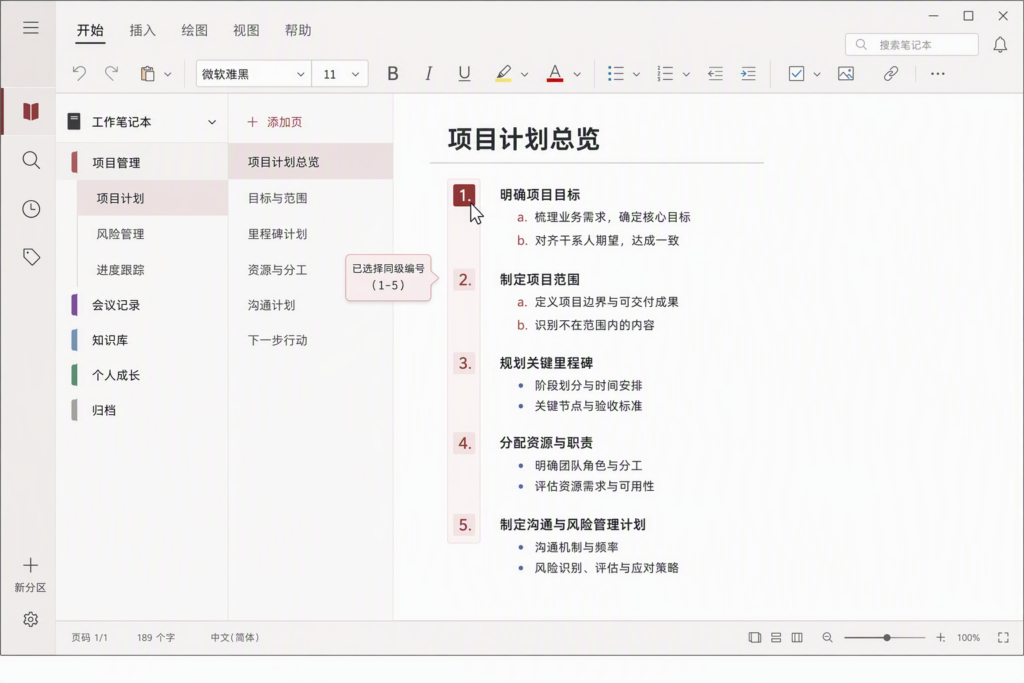
OneNote does not provide a dedicated button for changing the color of list numbers in the same way some word processors do. However, you can select a same-level number or bullet and then use the standard font color control to separate the marker color from the note text.
How to Set the Color
1. Create or open a numbered note
Open a OneNote page and create a numbered list, such as a project task list, meeting agenda, or set of operating steps. It is best to organize the hierarchy first and apply colors afterward.
2. Click the marker you want to change
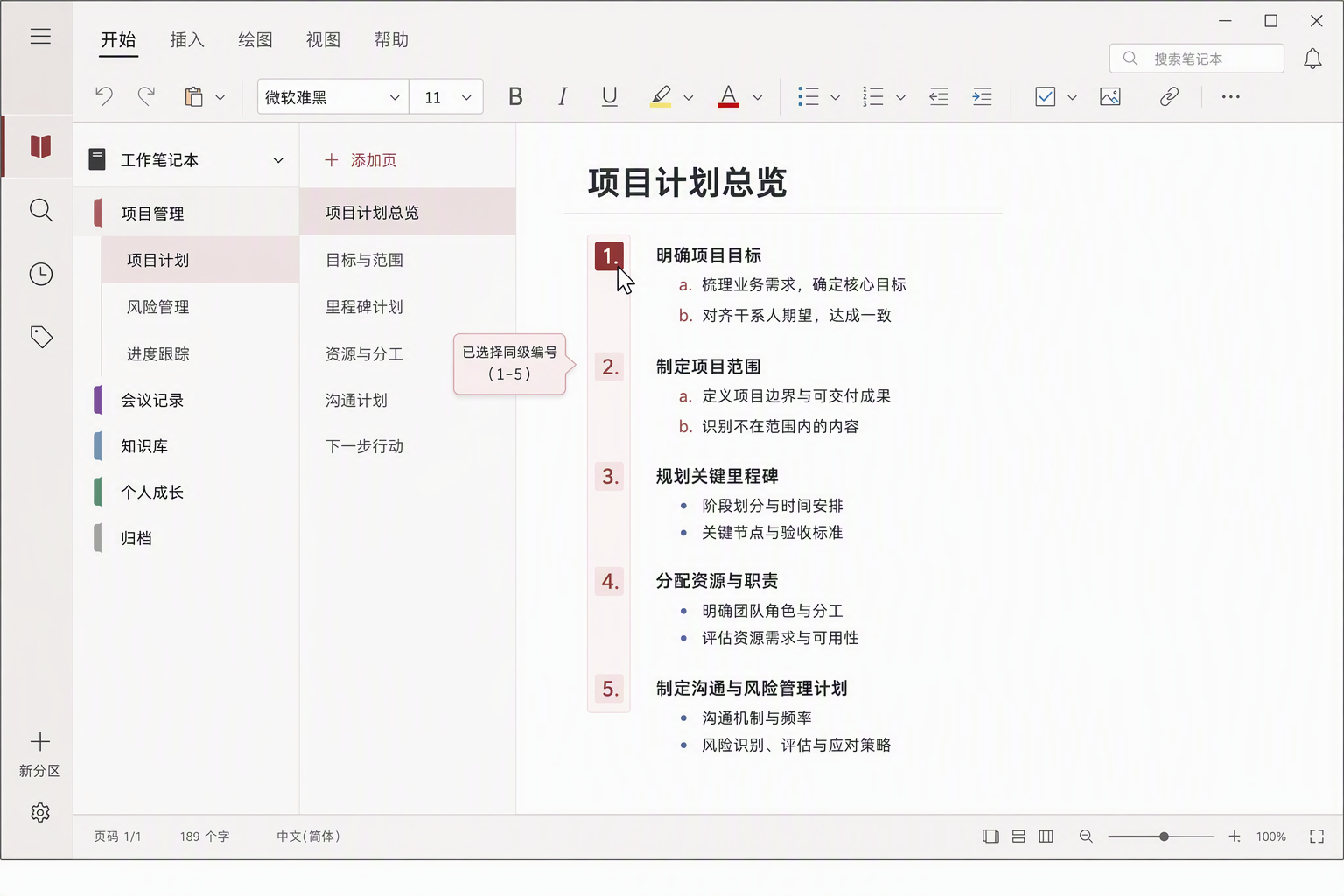
Place the cursor over a number or bullet at the level you want to adjust and click it. OneNote identifies the markers at the same level in the current note area and selects that level.
The important detail is to click the marker itself rather than dragging across the entire paragraph. This helps prevent the body text from being recolored together with the marker.
3. Use the standard font color control
With the marker selected, open the font color control in the ribbon or floating toolbar and choose a suitable color. The number or bullet will use the new color while the note text keeps its original body-text color.
4. Check format inheritance
After applying the change, add another item at the same level. OneNote will generally continue using the formatting for that level. You can also assign different colors to different levels—for example, deep red for first-level numbers and muted blue-gray for second-level bullets.
Why This Works Well for Long Notes
Color should not be used to decorate every line. Its real value is helping readers understand structure quickly. Applying color primarily to numbers and bullets offers three benefits:
- Clearer hierarchy: Readers can distinguish stages, subtasks, and supporting notes more quickly.
- Faster scanning: Colored markers create visual anchors on a busy page.
- Better readability: Keeping body text dark avoids the fatigue caused by a page full of bright colors.
Three Practical Use Cases
Meeting notes
Use different marker colors for agenda items, decisions, and follow-up actions. The marker provides the category cue while the body text remains consistent and easy to read.
Project task lists
Use first-level numbers for project phases and second-level bullets for individual tasks. This makes long task pages easier to scan during status reviews.
Study notes
Different marker levels can distinguish core concepts, practice steps, and supplementary information, creating a more reliable review path.
Practical Guidelines
Keep the palette to two or three colors and assign each color a consistent meaning. If every marker uses a random color, the visual system quickly loses its value. For notes shared across devices or teams, choose colors with sufficient contrast against a light background.
The underlying idea is simple: list markers are part of the text formatting system. Even without a dedicated “list marker color” command, selecting a same-level marker and applying a font color can make the structure of a OneNote page much easier to understand.
Making Microsoft 365 Notes More Valuable for Teamwork
Personal formatting is only the first step toward better productivity. Teams can combine OneNote with Microsoft 365 permissions, shared notebooks, task collaboration, and knowledge management practices to establish consistent workflows for meeting records, project follow-up, and organizational knowledge.
DELine helps organizations plan Microsoft 365 adoption, design knowledge-management workflows, improve collaboration processes, and maintain the resulting environment. Learn more at the DELine website or contact DELine.