Why Is Chrome Taking Up Several GB? What Enterprises Should Check Before Disabling Local AI
Why can Chrome suddenly take up several gigabytes of disk space? In many cases, the space is not ordinary web cache. Chrome may be preparing an on-device generative AI model for a built-in AI feature. When the Chrome version, device hardware, network connection, and available disk space meet the requirements, the browser can download the model in the background and store it locally as part of Chrome. Because the user never runs a separate “AI installer”, it can feel as though Chrome has quietly placed a large model on the computer.
How does Chrome put a local AI model on the computer?
This capability is known as On-device Generative AI. Instead of sending every request to a cloud service, Chrome can download a model when the feature is first enabled and then call that model locally. Google’s official documentation explains that Chrome downloads and stores on-device models for built-in AI features. The model files can also change with Chrome and model updates, so the actual disk usage should not be treated as a fixed number.
That explains why many users describe it as a “silent download”. Strictly speaking, this is not a mysterious program separate from Chrome. It is part of the browser’s feature delivery process: Chrome determines whether the device is eligible, downloads and stores the model, and manages it when disk space becomes limited. The problem is that the user may only see an AI setting or feature switch and may not immediately realize that a GB-scale local model is involved.
Public coverage often describes the model footprint as “around 4 GB”, but that is not a fixed value for every device or Chrome version. Google’s help documentation lists approximately 20 GB of free space as a prerequisite, while the Chrome developer documentation explains that a model may be removed when available space falls below a threshold and downloaded again when the conditions are met. Enterprise troubleshooting should therefore measure the actual files and disk changes instead of treating “4 GB” as a universal fact.
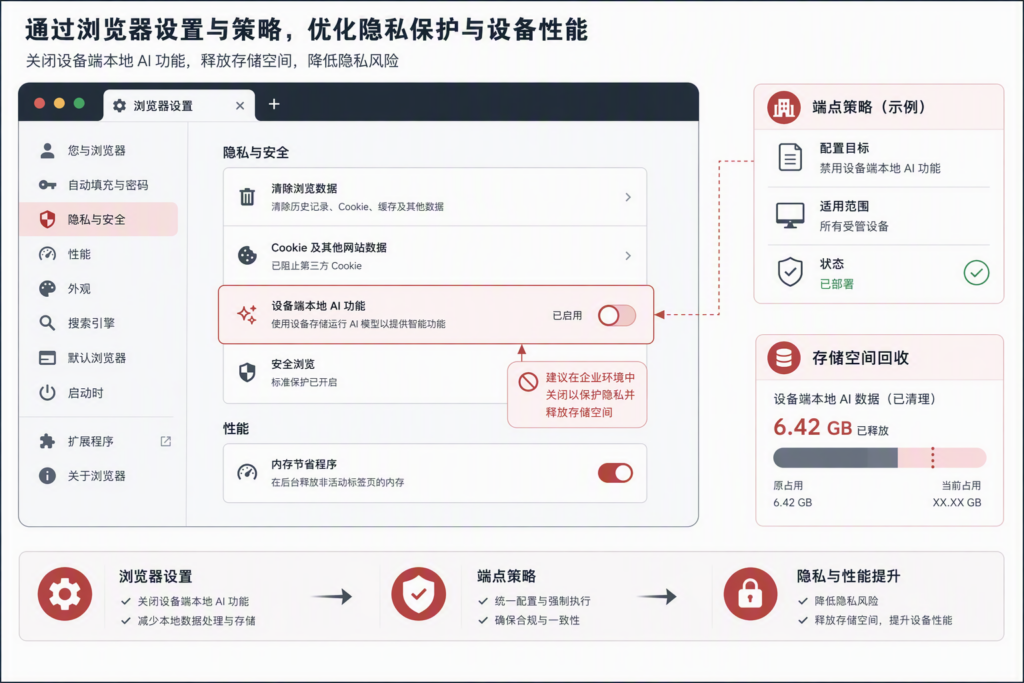
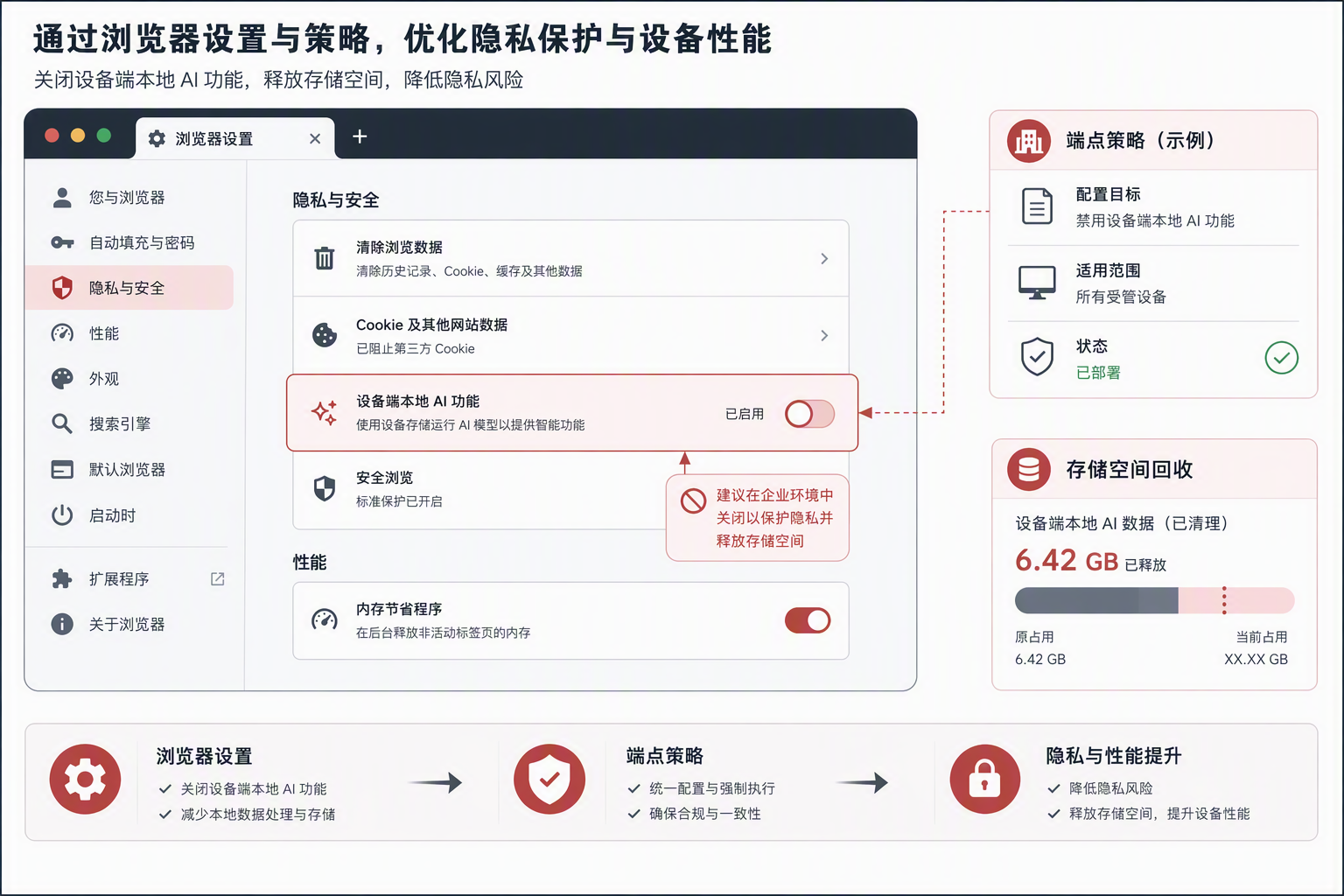
If you only want to stop this local model capability, open Chrome Settings → System → On-device AI and turn it off. Google says that disabling the setting removes the downloaded model and prevents it from being downloaded again while the setting remains off; features that depend on the local model will also be affected. On managed devices, however, the enterprise policy must be checked as well, because the user-facing setting can be overridden by an organization’s configuration.
References: Google Chrome Help: Manage on-device generative AI models; Chrome for Developers: Get started with built-in AI; Chrome Enterprise: GenAILocalFoundationalModelSettings policy.
1. The enterprise question is not only “disable or keep it”
On-device AI can reduce network round trips, improve responsiveness, and support selected offline scenarios. In an enterprise environment, it also creates three management questions:
- Storage: Models, caches, and temporary files may consume endpoint disk space and affect system updates or business applications.
- Privacy: The organization must know what is processed locally, what is sent to the cloud, and whether customer data, source code, or internal documents are involved.
- Permissions: If users can enable or disable features independently, IT may not be able to prove that the endpoint baseline is consistent or audit exceptions.
2. Identify your enterprise scenario first
- Individual workstations: Focus on recovering disk space, avoiding performance degradation, and confirming that Chrome remains usable after the change.
- Managed enterprise endpoints: Use Chrome enterprise policies, an endpoint management platform, or software distribution tools to apply a consistent configuration.
- High-sensitivity environments: For R&D, finance, customer data, or government work, complete data classification and vendor capability assessment before deciding whether to enable local AI.
3. Disable Chrome local AI on one device: confirm, disable, verify
Step 1: Record the current state before deleting anything
Record the Chrome version, operating system, remaining disk space, AI/privacy/performance settings, and recently created large directories. Do not delete a folder merely because its name contains “model”, “AI”, or “cache”; it may belong to Chrome updates, user configuration, or another approved function.
Step 2: Turn off the clearly identified AI setting
Open Chrome Settings and search for “AI”, “on-device”, “generative”, or “performance”. Names vary by Chrome version, operating system, and region. Disable only the setting you can identify with confidence, and keep a record of the state before and after the change.
Step 3: Restart Chrome and confirm the setting persists
Quit and reopen Chrome. Check that the setting remains disabled and the dependent feature is unavailable. If it turns itself back on, investigate enterprise policy, synchronization, or an extension that is applying the configuration again.
Step 4: Clean up through approved tools and record the result
Use Chrome’s own controls or an enterprise-approved disk cleanup tool. Before cleaning, confirm that passwords, bookmarks, business extensions, and required user settings will not be removed. Record the disk-space change afterwards. If space is not recovered, the cause may be an installer, system cache, or another application and should not automatically be attributed to Chrome.
4. Turn a manual switch into an auditable enterprise policy
- Define a policy baseline: Decide which AI capabilities are allowed, prohibited, or approval-based by department, device type, and data sensitivity.
- Check the policy source: Review Chrome enterprise policies, Microsoft Intune, Group Policy, configuration profiles, or another MDM. Do not rely only on the visible browser setting.
- Pilot first: Test on different roles such as IT, customer service, and sales, and observe disk usage, startup time, browser stability, and business impact.
- Roll out in waves: Keep a rollback plan and avoid simultaneous cleanup on every device.
- Audit continuously: Collect policy state, Chrome version, available disk space, and exception records on a schedule. Assign an owner and deadline for each exception.
Enterprise checks:
1. Chrome and operating system versions
2. Whether enterprise policy locks the AI setting
3. Change in available endpoint disk space
4. Whether model and cache directories are managed by approved tools
5. Exception owner, approver, and rollback plan
5. Security, permissions, and compliance
- Least privilege: Standard users should not retain the ability to bypass browser policy, install unknown components, or change the security baseline.
- Data boundaries: Document local processing, cloud processing, synchronization, and log-retention boundaries. Classify personal data, customer information, and source code before enabling a new capability.
- Supplier changes: Browser capabilities change with updates. A one-time screenshot is not a permanent control; recheck the policy during upgrade testing.
- Evidence: Keep policy exports, change records, pilot results, and exception tickets for audit and troubleshooting.
6. Five common mistakes
- Assuming every Chrome device downloads exactly the same “4 GB” model.
- Deleting a Chrome installation or cache directory without confirming its purpose.
- Disabling the setting on one computer without checking whether policy will re-enable it.
- Assuming that disabling local AI means data cannot leave the device, while ignoring extensions, synchronization, and other AI tools.
- Failing to record versions, policy state, and disk measurements before and after the change.
7. A practical IT checklist
- □ Confirm the affected device, Chrome version, and operating system.
- □ Identify the exact AI feature, policy name, and data-processing location.
- □ Complete a pilot and record storage, performance, and business impact.
- □ Confirm that standard users cannot bypass the key policy.
- □ Define exception approval, rollback, and service-desk procedures.
- □ Schedule a review after browser upgrades.
8. FAQ: what should an enterprise ask before disabling Chrome local AI?
Will disabling it break Chrome?
It normally disables a specific AI capability rather than uninstalling Chrome. The actual impact depends on the version, operating system, region, and enterprise policy, so validate it on a pilot device.
Will it always recover several GB?
Not necessarily. The change depends on whether the model is installed, cache size, cleanup behavior, and other applications. Use before-and-after measurements instead of a fixed claim.
Should every enterprise disable local AI?
Not automatically. Low-sensitivity, controlled use cases may be evaluated for enablement. High-sensitivity environments should complete data-boundary, permission, and audit design first. The right approach is tiered governance, not an unconditional “on” or “off”.
Conclusion: turn a storage complaint into auditable endpoint governance
The key issue with Chrome local AI is not chasing an unverified storage number. It is building a control loop from feature identification and policy control to data protection and outcome verification. DELine helps enterprises review endpoint policies, assess network and security architecture, govern AI capability adoption, and operate Microsoft and enterprise systems under a consistent permission and risk-management framework. Visit the DELine website or use the contact page to discuss your environment.